A Displacement Tutorial
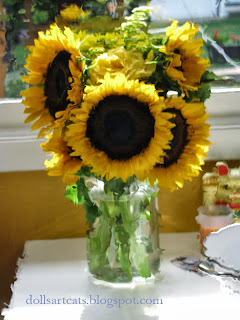
Photoshop has a lot of filters that will distort your image so it looks like it has ripples, or brushtrokes. I had never really used Distort much except to bend a plaid pattern over the folds of a scarf. Here's how it works with a photo and a pattern: You take this bad blurry photo of some sunflowers, and you go to Select>Select All, then to Filter>Distort>Displace: Then you will get a window asking you how many pixels you want to move horizontally and vertically: Then photoshop will open a window so you can browse to your "displacement map". This can be any image, as long as it isn't too large, is in .psd format, and is in Grayscale mode. Then you apply it and you get something like the first photo. I was curious to see what would happen if I painted a custom displacement map, so I re-opened the sunflowers, copied and pasted it into a new file. On this new file I turned down the opacity of the photo layer to 60%, filled the background layer with a 40% ...